
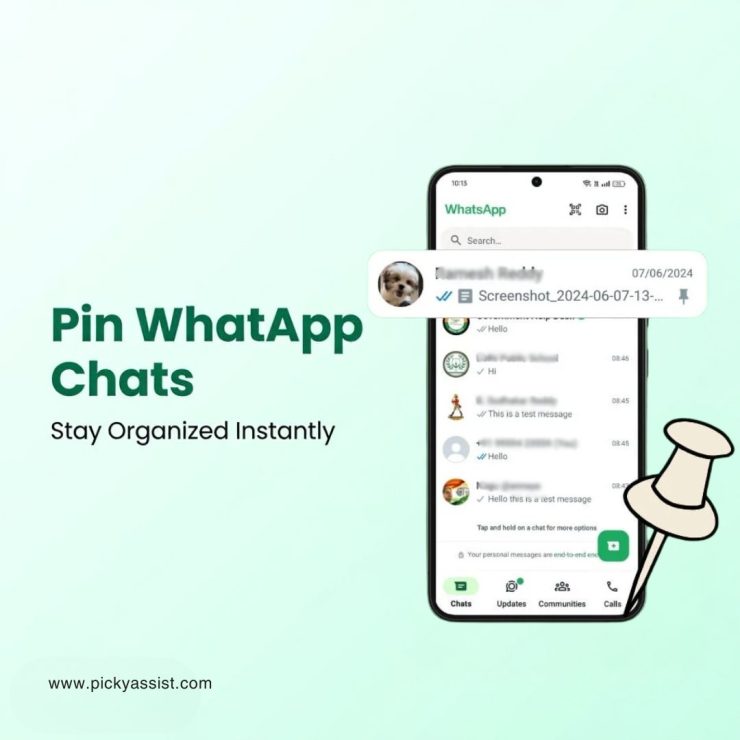
When your WhatsApp inbox starts filling up with conversations; clients, leads, internal teams, and personal chats, it becomes harder to keep important messages visible. Scrolling every time to find a key conversation is inefficient and can even lead to missed opportunities. That’s exactly why understanding how to pin WhatsApp chat is essential. It’s a simple feature, but when used correctly, it helps you prioritize conversations, stay organized, and respond faster.
In this guide, you’ll learn step-by-step methods to pin chats, manage pinned conversations effectively, and understand how businesses can go beyond basic chat management using tools like Picky Assist.
What Does Pinning a WhatsApp Chat Mean?
Pinning a chat keeps a conversation fixed at the top of your chat list, regardless of new incoming messages from other contacts. Instead of letting important chats get buried, pinned chats remain easily accessible at all times.
Why does this matter?
- You can prioritize high-value conversations
- You reduce response delays
- You improve overall communication efficiency
For businesses, this becomes even more important when managing multiple customer conversations daily.
How to Pin WhatsApp Chat? (Step-by-Step)
Let’s start with the most common use case.
How to Pin WhatsApp Chat in Android?
If you’re wondering how to pin WhatsApp chat in android, follow these steps:
- Open WhatsApp
- Go to your chat list
- Tap and hold the chat you want to pin
- Tap the pin icon at the top
The chat will instantly move to the top of your list.
How to Pin Chats in WhatsApp on iPhone?
For users searching how to pin chats in WhatsApp in iphone, the process is slightly different:
- Open WhatsApp
- Locate the chat
- Swipe right on the chat
- Tap Pin
The selected chat will now stay at the top.
How Many Chats Can You Pin?
WhatsApp allows you to pin up to 3 chats at a time. This limitation forces users to prioritize only the most important conversations.
Practical Tip
Use pinned chats for:
- Active clients
- High-priority leads
- Internal coordination threads
How to Unpin WhatsApp Chat?
If priorities change, you can easily remove a chat from the pinned section.
Steps to Unpin
- On Android: Tap and hold the pinned chat → Tap the unpin icon
- On iPhone: Swipe right → Tap Unpin
Understanding how to unpin WhatsApp chat is just as important as pinning, especially when managing dynamic conversations.
Important clarifications that might help you
WhatsApp does not universally support pinning individual messages in personal chats yet. Currently, WhatsApp offers alternatives like:
- Starred messages
- Reply and forward options
How to star a WhatsApp Message instead?
- Tap and hold the message
- Tap the star icon
You can access starred messages later from settings.
Practical Use Cases
Pinning is simple, but using it strategically makes a difference.
1. For Personal Use
- Keep family or emergency contacts at the top
- Track ongoing important conversations
2. For Freelancers
- Pin active clients
- Avoid missing project-related messages
3. For Sales Teams
- Keep hot leads visible
- Respond quickly to high-intent prospects
4. For Customer Support
- Prioritize unresolved queries
- Monitor ongoing support cases
Limitations of WhatsApp Pinning
While useful, pinning has clear limitations:
1. Only 3 Chats Can Be Pinned
Not enough for businesses handling large volumes.
2. No Automation
You must manually pin and unpin chats.
3. No Team Visibility
Pinned chats are visible only to individual users, not teams.
4. No Context or Tagging
You cannot categorize chats beyond pinning.
How Businesses Go Beyond Pinning in WhatsApp with Picky Assist?
Pinning works for individuals, but businesses need more structured conversation management. This is where Picky Assist comes in.
1. Smart Conversation Routing
Automatically assign chats to the right team within a shared-inbox accessible
2. Priority-Based Handling
Instead of manually pinning chats, you can prioritize conversations using workflows.
3. Centralized Inbox
Teams can view and manage conversations in one place.
4. Automation + Context
Combine automation with conversation tracking for better engagement.
Why does this matter?
Instead of relying on manual actions like pinning, businesses can:
- Reduce response time
- Improve lead handling
- Scale communication efficiently
Best Practices for using Pinned Chats effectively
Even with automation tools, pinning still plays a role.
Keep It Minimal
Pin only the most critical chats to avoid clutter.
Update Regularly
Unpin inactive chats and replace them with current priorities.
Combine with Labels (If Using Tools)
Use tags or CRM integrations for better organization.
Avoid Over-Reliance
Pinning is a quick fix, not a complete system.
Common Mistakes to Avoid while Pinning WhatsApp Messages
1. Pinning Too Many Irrelevant Chats
This defeats the purpose of prioritization.
2. Forgetting to Unpin
Outdated chats reduce visibility for active ones.
3. Using Pinning Instead of Proper Systems
Businesses should not rely solely on manual chat management.
4. Ignoring Response Time
Pinning helps visibility, but response speed still matters.
How WhatsApp fits into a larger business strategy?
Pinning is just the starting point. For businesses, the real value comes from combining:
- Chat organization
- Automation
- CRM integration
- Analytics
When these elements work together, WhatsApp becomes a full communication and conversion channel.
To Conclude
Understanding how to pin WhatsApp chat is a simple but powerful step toward better conversation management. It helps you stay organized, prioritize important chats, and respond faster.
However, as conversation volume grows, manual methods like pinning reach their limits. Businesses need smarter systems that go beyond basic features.
That’s where solutions like Picky Assist help, by turning WhatsApp from a messaging app into a structured, scalable communication platform.
FAQs on Pinning WhatsApp Messages
1. How to pin a chat in WhatsApp quickly?
On Android, tap and hold the chat and press the pin icon. On iPhone, swipe right and tap Pin.
2. Can I pin more than 3 chats on WhatsApp?
No, WhatsApp currently allows only 3 pinned chats at a time.
3. How to unpin WhatsApp chat?
Tap and hold the pinned chat (Android) or swipe right (iPhone) and select Unpin.
4. How to pin a message in WhatsApp?
WhatsApp does not fully support message pinning in all chats. You can use the “star message” feature as an alternative.
5. How to pin WhatsApp chat in Android?
Open WhatsApp, long-press the chat, and tap the pin icon at the top.
6. How to pin chats in WhatsApp on iPhone?
Swipe right on the chat and tap Pin.
7. Why can’t I pin more chats?
WhatsApp limits pinned chats to 3 to keep the interface clean and manageable.
8. Is pinning useful for businesses?
Yes, but only for small-scale usage. Larger teams benefit more from tools like Picky Assist for structured chat management.




Add comment