
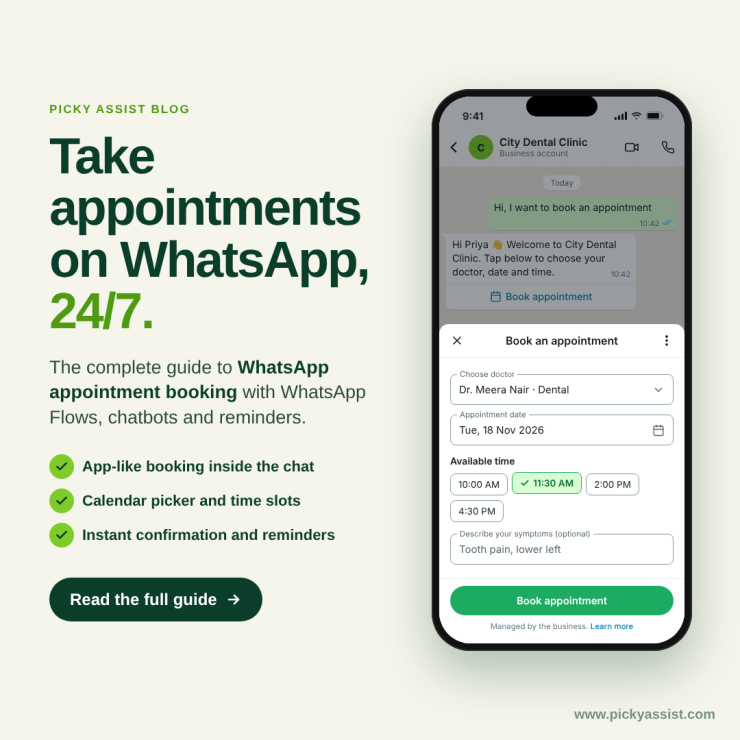
WhatsApp has no built-in appointment feature, so how to take appointment on WhatsApp comes down to one choice: handle each request by hand in chat, or let a connected flow do it. Both work. Manual handling suits a handful of bookings a week. A flow keeps working when your phone is off and your team has gone home.
Most guides stop at “share a booking link.” This one covers what customers see, how to set up each level of automation, and what to fix when bookings leak using WhatsApp booking management and automation at a smaller set-up cost.
What Customer Experiences from WhatsApp Appointment Booking?
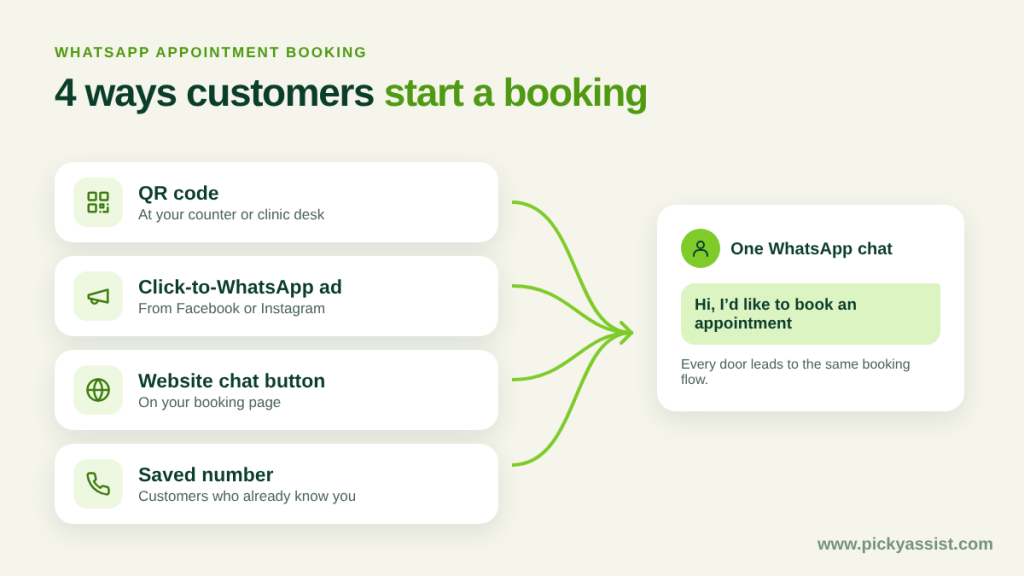
From the customer’s side, how to take appointment on WhatsApp looks like a short chat. A customer who wants to book on WhatsApp usually arrives through one of four doors: a QR code at your counter, a Click-to-WhatsApp ad, a chat button on your website, or your saved number. From there the path is brief:
- They send “Hi” or a keyword like “appointment.”
- A menu offers your services, or a team member asks what they need.
- They choose a service, a date and a time slot.
- They share a name and phone number if you don’t already have them.
- They can also send payment securely using WhatsApp
- They receive a confirmation, then reminders before the slot.
If any step takes more than a tap or a short reply, customers drop off. Every setup below should be held to that standard.
Three Ways to Set Up WhatsApp Appointment Bookings
Here is how to take appointment on WhatsApp at three levels of effort:
| Route | How it works | Best for | Watch out for |
|---|---|---|---|
| Booking link in chat | You reply manually in the WhatsApp Business app and share a Calendly or Google Calendar link | A few bookings a week | You answer every message; nothing happens after hours |
| WhatsApp flows on the WhatsApp Business API | WhatsApp Flows collects service, date and time, then confirms | Steady daily volume | Needs an API provider and one-time setup |
| Chatbot plus CRM and calendar | Details are stored, availability is checked, and reminders fire automatically | Clinics, salons, coaching centres and service workshops with staff schedules | The most setup effort; map real availability first |
Picky Assist helps businesses build WhatsApp Flows and AI chatbots that collect the booking details, the necessary details like name, address, mobile number, appointment slot , appointment time and other relevant details lands straight in the CRM system, and reminder templates go out on schedule. A WhatsApp booking system like this doesn’t depend on someone watching the inbox and manual replies which slows down process efficiency.
How WhatsApp Appointment Booking Works?
- Trigger and Initiation: A customer begins by scanning a QR code or messaging the business’s WhatsApp number with a keyword such as “hi,” “hello” or “start booking.”
- Interactive Flows: WhatsApp Flows then guide the customer through choosing a service, selecting a date and time from a synced calendar like Google Calendar, and entering details such as their name or contact number.
- Payment and Confirmation: The customer can pay online or choose to pay in person, and an instant confirmation follows with the date, time and service details.
- Automated Reminders: The system sends a reminder the day before and a final one a few hours ahead, and lets customers reschedule or cancel with ease.
Smarter Way to Manage Appointments and Bookings using WhatsApp
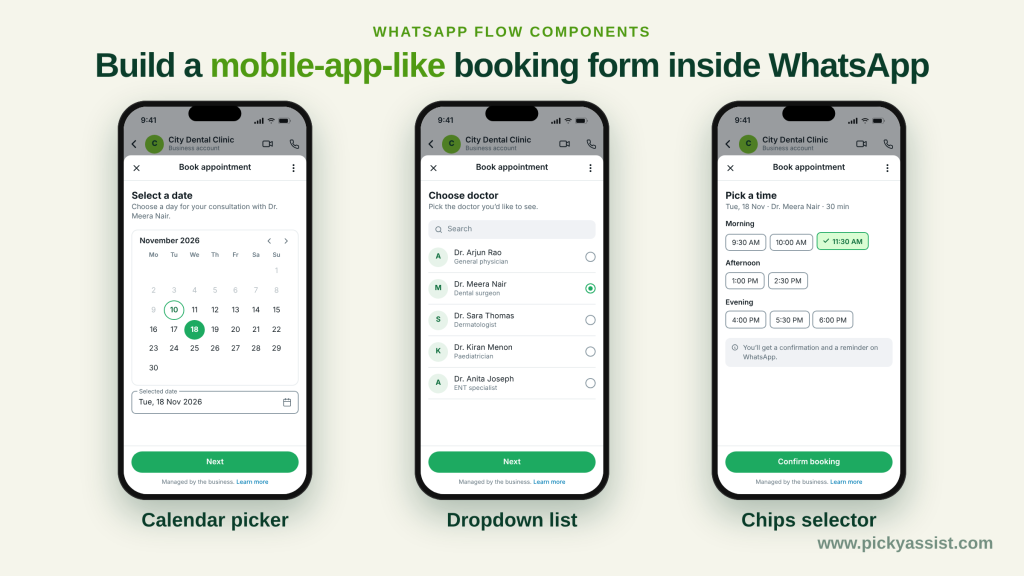
Make the most of the WhatsApp features for scheduling.
Flows
Take customers from the first tap to a confirmed booking in one native form inside the chat. Automation handles the steps while personalised details keep it relevant, so the experience is quicker and more pleasant.
List Messages
Show customers a tidy menu of choices, such as open time slots or available services, so they can pick what suits them in seconds.
Interactive Reply Buttons
Give customers one-tap actions to confirm, reschedule or cancel, which keeps the booking journey short and simple.
Building WhatsApp Flow in Six Steps
WhatsApp flows lets you book an appointment on WhatsApp without the back-and-forth actions being taken. Let’s see how your business can build a WhatsApp flow to communicate and collect necessary details from customers.
- Get API access through a provider. The WhatsApp Business app can’t run automated flows. A provider such as Picky Assist connects your number to the API and gives you a flow builder.
- Define what can be booked. List your services, durations and real working hours before opening the builder. A flow that offers slots you can’t honour creates more work than it saves.
- Write the conversation. Use reply buttons or a list for service and slot choice, and ask only for what you need. Four taps is a good ceiling.
- Add a human handover. If a customer’s preferred time isn’t offered, route them to a person instead of leaving them stuck.
- Confirm instantly. Send a confirmation on WhatsApp with service, date, time and location the moment the slot is chosen.
- Test like a customer. Book, reschedule and cancel from a personal phone, including after hours.
How to Build a Lead Qualification and Data Collection AI Chatbot on WhatsApp
1. Set up the groundwork.
Define what a qualified lead means (budget, timeline, location, product), since these become your questions. Connect your number to the WhatsApp Business API through a provider like Picky Assist, and give each entry point its own tag to see which brings the best leads.
2. Welcome the lead and ask the right questions.
Greet the lead and ask permission to follow up. Then ask four or five questions one at a time using buttons or lists, easiest first and budget last.
3. Collect, validate and score the data.
Capture name, phone and email, validate each input, and let people fix mistakes. For longer forms, use a WhatsApp Flow. Then tag each lead: ready-to-buy goes to sales, still comparing goes to nurture, and poor fits get a polite reply.
4. Add a human handover and sync to your CRM.
Let leads reach a person at any point, with full chat history and an after-hours rule. Send answers, source and score to your CRM so each lead has one record.
5. Follow up, test and improve.
Nudge quiet leads with an approved template, since only templates work outside the 24-hour window. Test on your own phone, then simplify wherever leads drop off.
Sending Reminder Messages: Where WhatsApp Appointment Booking Pays Off?
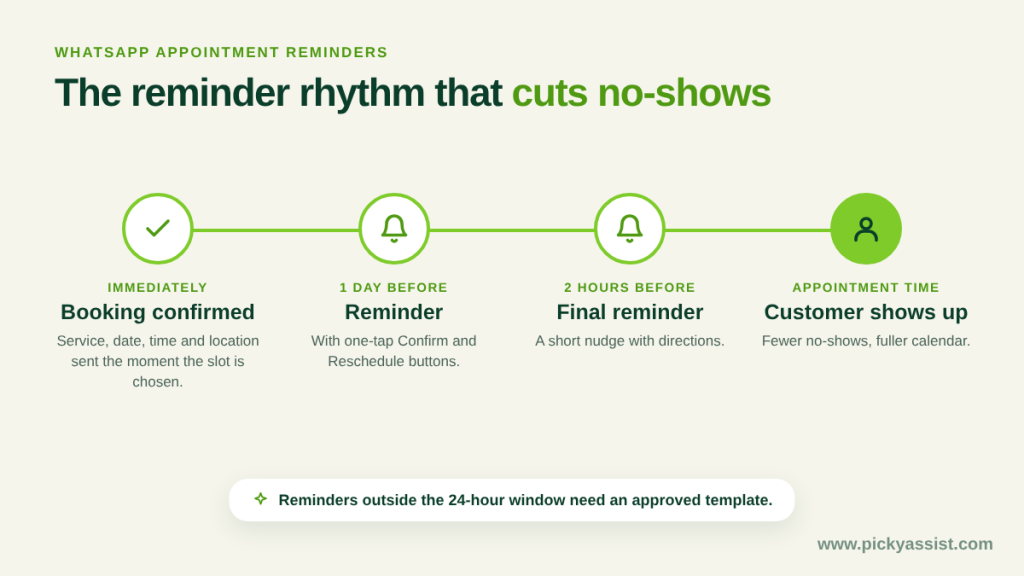
Reminders turn a booking into a visit. Outside the 24-hour customer-service window, business-initiated messages need an approved template. Write and submit your reminder, reschedule and cancellation templates before you launch.
A common rhythm is one reminder a day before and a short one a couple of hours before. Add a reschedule button so a conflict becomes a new booking, not a no-show. This is the part of how to take appointments on WhatsApp that most businesses skip, and it is where the time savings show.
If you send customers in from Click-to-WhatsApp ads, note that Meta currently opens a 72-hour free window for conversations started that way. Check Meta’s latest pricing before planning ad spend.
Benefits of Managing Appointments and Bookings on WhatsApp
Automated Scheduling
A chatbot handles slot selection and confirmation on its own, so your team stops answering the same “are you free on Friday?” messages all day.
Live Agent Handover
When a request doesn’t fit the flow, such as a group booking or an unusual time, the chat passes to a person with the full history, so the customer never has to repeat themselves.
Interactive Messages
List messages and reply buttons let customers choose a service or slot with a tap, which is faster than typing and cuts down on mistakes.
Pre-approved Templates
Confirmations, reminders and rescheduling messages go out automatically in approved formats, helping customers remember their slot and change it easily when plans shift.
Fallback Channels
If a WhatsApp message can’t be delivered, the system can fall back to SMS, email or another preferred channel, so a booking isn’t missed.
24/7 Self-service
Customers book whenever it suits them, including evenings and weekends, without waiting for your team to come online.
WhatsApp Appointment Booking Use Cases in Different Industries?
- Hospitals and Dental Clinics: WhatsApp flow asks for the consultation type, preferred doctor and a time slot, so front-desk staff stop juggling calls and walk-ins. A confirmation and a reminder cut missed visits, and anything clinical stays out of the chat.
- Education and Coaching Centres: Prospective students book a demo class or counselling session without waiting for a callback. The chat captures their course interest up front, so the counsellor starts the session already knowing what to discuss.
- Car Service: The customer shares the vehicle model, the issue and whether they want pickup or drop-off, so the workshop can plan the job before the car arrives. A status message when the car is ready saves your team a round of “is it done yet?” calls.
- Real Estate: Buyers pick a property and a site-visit slot, and the agent sees every request in one place instead of scattered across calls. A reminder with the location and the agent’s name helps visits actually happen and cuts last-minute no-shows.
- Tours and travel: Travellers pick a tour or destination, their travel dates and the number of guests, so your team gets a complete enquiry instead of a vague “how much for Goa?”. A confirmation with the itinerary and pickup point, plus a reminder before departure, keeps everyone on the same page and reduces last-minute changes.
- Salons and Spas: Customers choose a service, a stylist and a time in a few taps, and the flow blocks slots a stylist already has booked. A reminder the day before gives clients an easy way to reschedule instead of simply not showing up.
WhatsApp flows can be used in every industry where customer bookings are made. Only the questions and details that are needed from your clients changes! Every necessary detail is updated neatly inside your CRM with the lead stage ensuring complete clarity without the possibility of any confusions.
Mistakes That Cost You Bookings!
- Offering too many slots at once, which stalls the chat.
- No confirmation message, so customers aren’t sure they’re booked.
- No handover to a human for edge cases.
- Sending reminders without pre-approved templates.
- Treating booking via WhatsApp as a side channel instead of tracking it in your CRM.
Conclusion
You don’t need to automate everything on day one. Start with a booking link in chat, then move to a chatbot flow once bookings become daily work. The best way to learn how to take appointment on WhatsApp is to launch it for one service, watch where customers hesitate, and fix those steps first.
Picky Assist helps you build the flow, store every booking in the CRM and send reminders on schedule. Set up booking via WhatsApp for your busiest service this week and see how many requests arrive after hours.
FAQs on WhatsApp Appointment Bookings
Connect your number to the WhatsApp Business API through a provider like Picky Assist, then build a chatbot flow or WhatsApp flow that collects the service, date, time and contact details. It automatically sends instant confirmations and approved reminders (if any more actions from the user is pending), test it on your own phone, and share your number through a QR code, website button or Click-to-WhatsApp ad.
No. WhatsApp has no native appointment feature. Bookings work through a scheduling link shared in the chat, or through an AI chatbot or WhatsApp Flow built on the WhatsApp Business API, which keeps the whole booking inside the chat.
Yes. They only need WhatsApp. They scan a QR code, tap an ad or message your number, and the chat guides them.
The app is manual: you reply to each message yourself. The API supports automated flows, CRM storage and scheduled reminders.
Yes, when you message a customer outside the 24-hour customer-service window. Submit reminder, reschedule and cancellation templates for approval in advance.
Chatting with customers who message you is generally low-cost, but template messages and provider fees follow Meta’s current pricing and your provider’s plan. Check both before you launch.
Yes. Add reschedule and cancel buttons to your reminder template so changes happen in one tap.
Send a confirmation immediately, a reminder a day before, a short one hour before, and make rescheduling easy.
Add comment