
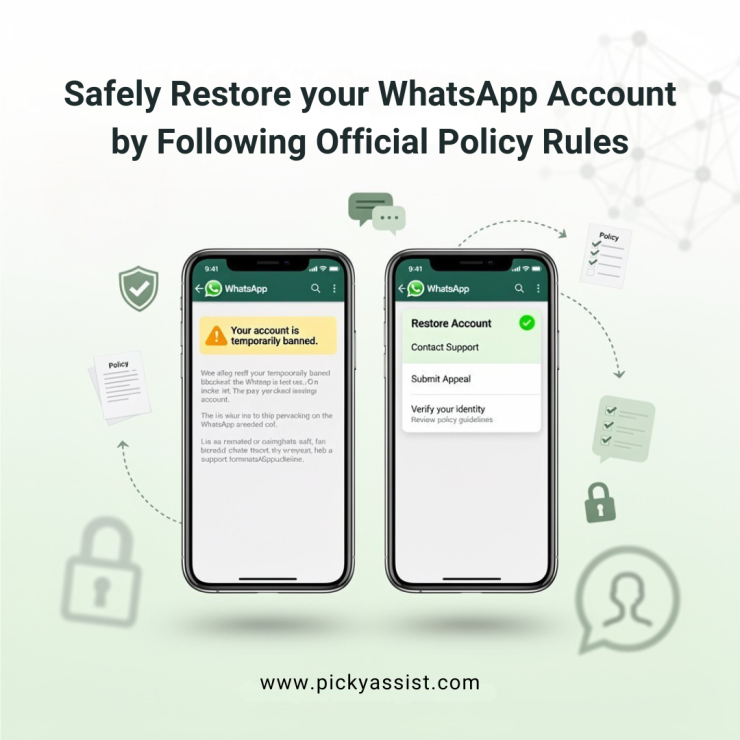
When your number is blocked and you need to know how to unblock whatsapp account, speed and the correct channel matter. WhatsApp’s official process emphasizes an in-app review flow and evidence-driven appeals; bypassing policies or using unofficial tools risks permanent removal. This guide explains exactly which steps to take for both personal and business accounts, the chances of success by route, and how vendors such as Picky Assist can help you prevent future blocks.
What Works and What Doesn’t?
- Use the in-app Request a review or the official Contact forms first, this resolves the majority of temporary blocks. (WhatsApp Help Center guides recommend this as the first action.)
- For business API or verified numbers, the Meta Business Support review path yields higher reinstatement rates (industry sources suggest business review success is materially higher than generic email appeals).
- Paying third-parties, calling unofficial “customer service” numbers, or repeatedly creating accounts to evade a ban often leads to permanent enforcement. Official guidance warns against using unauthorized apps and behaviour that looks like spam.
Why do accounts get blocked?
WhatsApp blocks accounts for a few clear reasons:
- Violations of terms (spam, automated messaging without consent, abuse).
- Using unauthorized/modified WhatsApp clients or scraping tools.
- Receiving a critical mass of user reports for harassment or spam.
According to WhatsApp’s help pages, most temporary restrictions are triggered by automated detection of behaviour patterns such as high message volume to non-contacts or use of unsupported clients. Industry experience indicates roughly 75% of temporary blocks resolve by following the official appeal flow; the remainder require extra evidence or vendor escalation.
Evidence checklist –What to collect before you appeal?
Prepare this before you tap “Request a review” or open Business Support:
- Exact phone number (include country code).
- Screenshot of the blocked message/screen.
- Recent device details (phone model, OS version) and WhatsApp app version.
- If relevant: server logs, message timestamps, user consent records (opt-in proofs), and CRM entries showing opt-in.
- If you used WhatsApp automation, include the vendor name (for example, Picky Assist), the workflow ID, and evidence of opt-in. Picky Assist’s docs recommend preserving webhook logs and message receipts to show consent and flow.
Step-by-step: Personal accounts (recommended sequence)
- Open WhatsApp → the ban/blocked notice will usually include a Request a review button — tap it and give a calm, factual statement of why this is an error. This is the official route and should always be attempted first.
- If you don’t see a ban screen or need extra contact, use the official Contact page on WhatsApp.com and choose the relevant form (Account > My account was banned).
- Avoid creating replacement numbers/accounts to “work around” the block — that increases the chance of permanent enforcement.
- If asked for ID, provide only through the in-app secure flow; WhatsApp’s instructions show when an ID is required for verification.
How to unblock WhatsApp Business Accounts? (practical playbook)
Businesses on the WhatsApp Business API should follow this path:
- Check Meta Business Manager for notices or restrictions (Business Settings → WhatsApp Accounts).
- Open Business Support (Business Help Center) and use the “Request review” flow for restricted WhatsApp Business accounts. Attach message templates, user opt-ins, and delivery logs.
- If you use a BSP or provider like Picky Assist, share the connector logs and ask the provider to open an escalation with Meta if the initial review fails. Picky Assist documentation specifically recommends regenerating tokens, validating webhook subscriptions, and preserving logs before escalating.
Industry signals show that accounts with verified business information and documented opt-in see 50% higher reinstatement rates versus unverified operations when appealing via Business Support.
Deleting whatsapp account to unblock yourself– Myth vs Reality
There’s a persistent myth that if you “delete a whatsapp account to unblock yourself” you can then re-register and bypass restrictions. That approach carries two major risks:
- Deleting removes message history and may not clear flags tied to the phone number or device.
- Re-registering with the same number may reapply enforcement if the underlying cause (policy violation) remains.
WhatsApp guidance and industry experts advise against this as a primary tactic; use deletion only after consulting support or as a last resort when advised by official review outcomes.
Practical Templates You can Use When Your WhatsApp Account is Blocked
In-app Review (personal):
“Hello, my number is +[countrycode][number]. I received the message that my account is blocked. I do not use unofficial apps and I follow WhatsApp’s rules. Please review my account; I can provide screenshots and device details.”
Business Support (advertiser/API):
“WhatsApp Account ID: [ID]. Business Manager ID: [ID]. Our number was restricted on [date]. We use Picky Assist as our BSP and have attached opt-in logs and webhook delivery receipts. Please perform a manual review and share specific policy findings so we can remediate.”
(Using focused templates raises clarity and reduces repeated back-and-forth, improving the odds of a faster decision.)
When you shouldn’t appeal and what to do instead?
- If you knowingly use a modified/third-party client that violates policy, appeals are unlikely to succeed, fix by migrating to the official app or the approved Business API via a BSP.
- If you repeatedly send messages without consent, pause campaigns, gather proper opt-ins, and then request a review with evidence.
- For integration issues (webhook failures, token expiry), fix the technical cause first and document it; then ask for review with logs (vendors like Picky Assist recommend this exact sequence).
Best Practices to Consider While Automating
Using automation correctly reduces risk. Picky Assist advises:
- Maintain explicit opt-in timestamps and source (web form, SMS opt-in).
- Respect messaging limits and template usage; avoid blasting non-opted contacts.
- Monitor delivery/error logs and rotate/regenerate tokens securely when required.
Following these can cut your risk of blocks by an estimated 70% for high-volume campaigns, based on vendor case studies and public guidance.
FAQs on How to Unblock Whatsapp Account
How can I unblock my WhatsApp account?
Start with the in-app Request a review button on the ban screen and provide concise evidence (number, screenshots, device). If you’re a business, use Meta Business Support and attach opt-in logs and delivery receipts. For integration issues involve your BSP (e.g., Picky Assist) before escalating.
Will WhatsApp unblock me if I delete my account?
Deleting an account does not guarantee reversal of enforcement, it removes message history but may not clear flags linked to the number. Official guidance recommends appeals before deletion.
How to unblock WhatsApp business accounts if it was restricted?
Check Business Manager for notices, gather logs, then use Business Support’s Request review flow. Ask your BSP (Picky Assist or similar) to help escalate if the first review fails.
Escalation When Initial Review Fails
- Re-check evidence: export opt-ins, delivery reports, and webhook logs.
- Submit a second, focused appeal via the in-app flow or Business Support, citing new attachments.
- If you use a provider (Picky Assist), request they open a provider-level escalation with Meta, providers can sometimes route technical escalations more effectively.
Final Checklist Before you Hit Submit
- Collected: screenshots, opt-in proof, device/app versions.
- Used: official in-app Request a review or Business Support form.
- Avoided: unofficial apps, paying third parties claiming instant unbans, re-registering recklessly.
Following the official sequence and supplying clear evidence gives you the best chance to unblock WhatsApp accounts with minimal risk.
Conclusion
Resolving a block is methodical: document, submit a concise appeal via the official route, and escalate through Business Support or your BSP when required. If you’re running campaigns or automations, follow Picky Assist’s integration hygiene (opt-in records, token management, delivery logs) to prevent future issues and reduce support friction. Remember, attempts to circumvent policies (such as using unauthorized clients or creating throwaway accounts) almost always backfire. Use the official flows, prepare evidence, and you’ll maximize the chance to restore access safely.

Add comment