
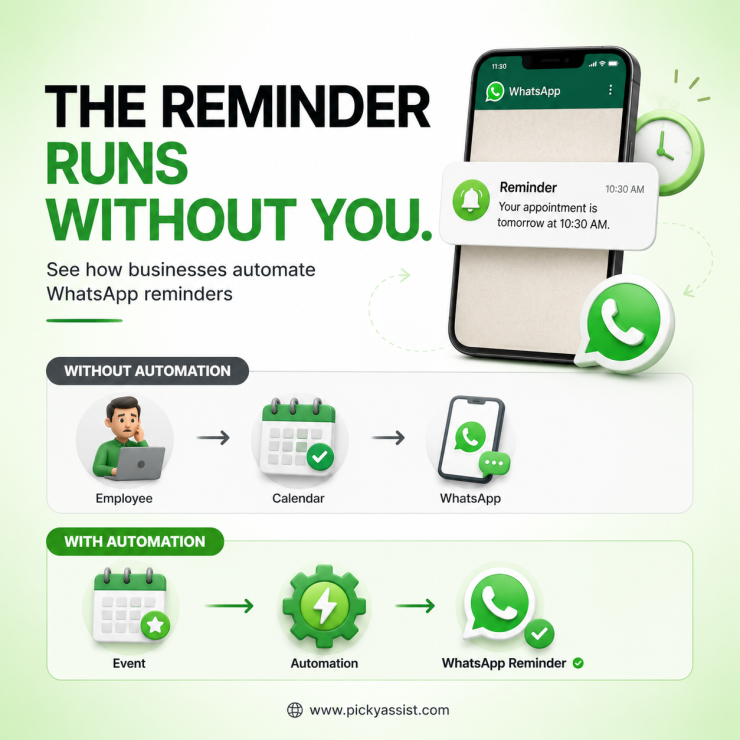
A common mistake businesses make with WhatsApp reminders is treating them like ordinary scheduled messages. A reminder only works when the timing, customer consent, message type, and follow-up logic are configured correctly.
To set a reminder message in WhatsApp, you can use WhatsApp Business features for simple manual reminders or WhatsApp Business Platform automation for scheduled, recurring, and event-based reminders. For businesses, an automated reminder can be triggered by an appointment, payment deadline, abandoned action, delivery date, or customer event.
Can You Schedule a Reminder Message on WhatsApp?
Yes, but the method depends on what you need.
For a personal or small-business use case, you may need to create the reminder manually or use a supported scheduling workflow. For automated business reminders sent at scale, the WhatsApp Business Platform is the more appropriate option because the reminder can be triggered from a CRM, booking system, form, payment event, or other business application.
| Reminder requirement | Suitable approach |
|---|---|
| One-time personal reminder | Manual/scheduling method |
| Appointment reminder | Automated WhatsApp workflow |
| Payment due reminder | CRM/payment-triggered automation |
| Order or delivery reminder | Event-based automation |
| Recurring customer reminders | Automated workflow |
| Large customer database | WhatsApp Business Platform |
The important distinction is that an auto WhatsApp reminder should not depend on an employee remembering to send it. The system should determine who needs the reminder, when it should be sent, and what information it should contain.
How to Set a Reminder Message in WhatsApp for Business?
For a business workflow, use this five-step setup.
1. Define the event that starts the reminder
Start with the business event rather than the message. For example:
Appointment booked → reminder 24 hours before → second reminder 2 hours before
Other triggers can include:
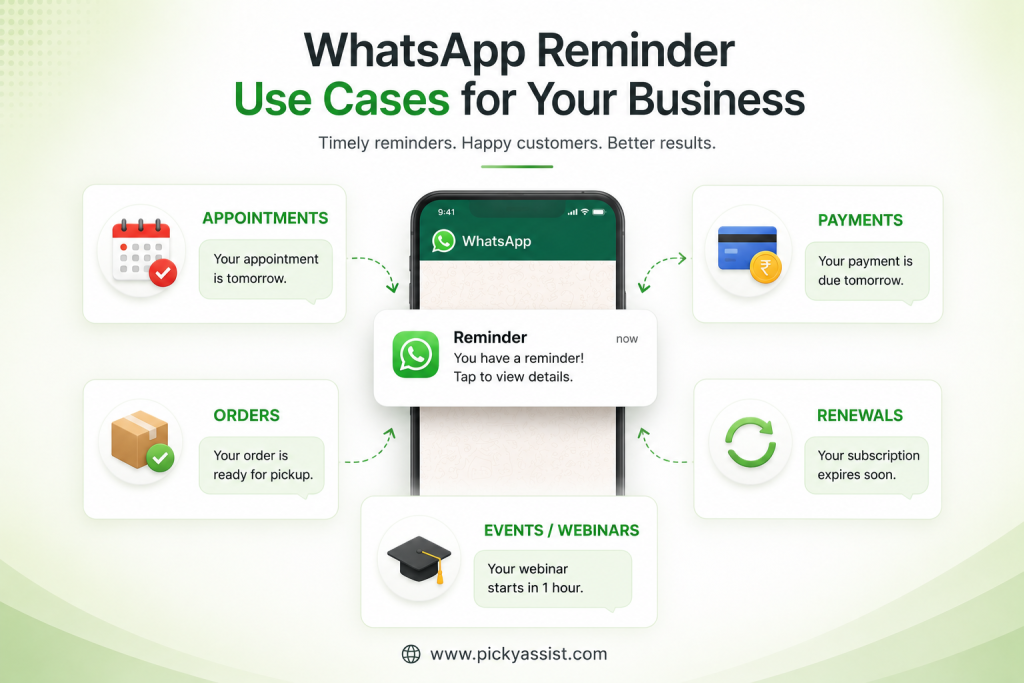
- Payment due tomorrow
- Subscription renewal approaching
- Order ready for collection
- Service appointment confirmed
- Webinar starting soon
- Customer has not completed an expected action
This prevents the common mistake of sending generic reminders on a fixed schedule regardless of customer activity.
2. Capture the exact reminder time
Your automation should store the customer’s relevant date and time. This becomes important when customers are in different time zones. A reminder scheduled for 9:00 AM should ideally arrive according to the customer’s local time rather than the business’s server time.
For appointment-based businesses, also account for rescheduling and cancellations. A reminder should be cancelled or updated when the underlying appointment changes.
3. Create the WhatsApp reminder message
Keep the first sentence immediately useful.
For example:
Your dental appointment is tomorrow at 10:30 AM. Reply CONFIRM to confirm or RESCHEDULE if you need another time.
The message gives the customer three things: what is happening, when it happens, and what action to take.
Avoid turning a reminder into a promotional advertisement. If the purpose is an appointment or payment reminder, keep the content aligned with that purpose.
4. Use the appropriate WhatsApp message template
When a business initiates a message outside the applicable customer-service window, the WhatsApp Business Platform uses approved message templates. Template categories and policy requirements matter, particularly when distinguishing utility reminders from marketing messages.
A genuine appointment, order, or payment-related notification should accurately represent its purpose. Adding unrelated promotional content can affect how the message is categorized and approved.
WhatsApp’s Business Platform is designed for businesses communicating with customers at scale through programmatic messaging.
5. Add a fallback and stop condition
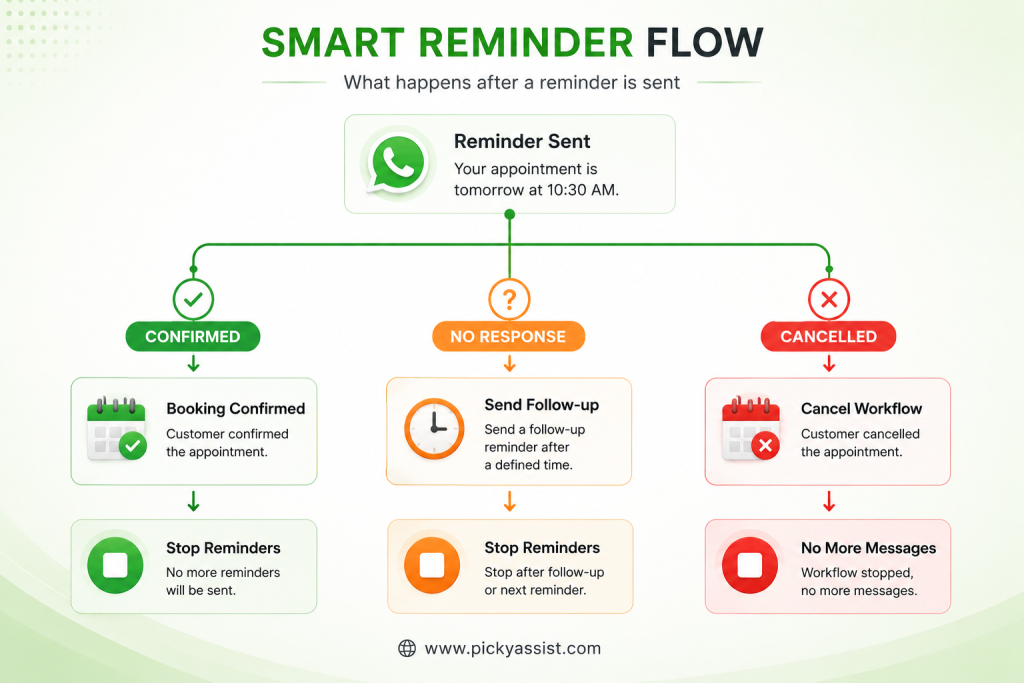
This is where many reminder workflows fail. Suppose a customer confirms an appointment after receiving the first reminder. The automation should not continue sending unnecessary reminders.
A practical workflow is:
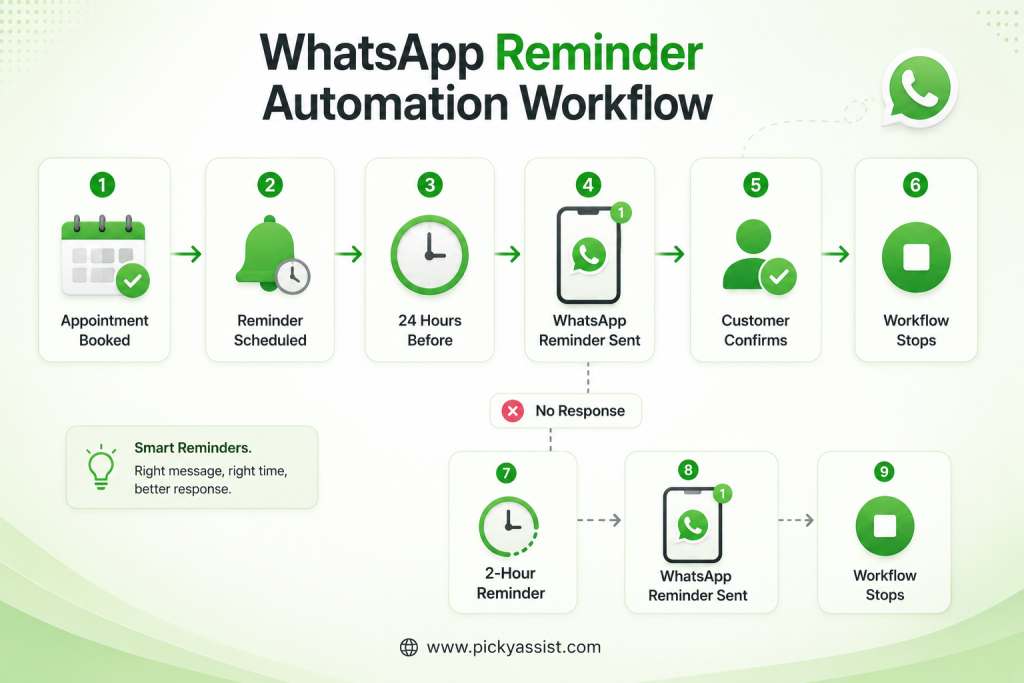
Booked → Reminder 24h before → Customer confirms → Stop future reminders
If the customer does not respond:
Booked → Reminder 24h before → No response → Reminder 2h before → Stop
Set explicit conditions for cancellation, confirmation, rescheduling, and completed transactions.
How Many WhatsApp Reminders Should You Send?
There is no universal number that works for every business. The right frequency depends on the event and the customer’s expectation.
For a scheduled appointment, one reminder 24 hours before and another 1–2 hours before can be a practical starting configuration. For payment reminders, the sequence may need to begin several days before the due date.
The key metric is not simply how many reminders were delivered. Track delivery, read rate, replies, confirmations, cancellations, and missed appointments to determine whether the sequence is actually improving the business outcome.
These are operational benchmarks rather than universal WhatsApp performance guarantees; actual results vary by audience, industry, message quality, and customer consent.
Common WhatsApp Reminder Mistakes
Sending reminders after the customer cancels
Connect the reminder workflow to the source of truth, such as your booking or CRM system.
Using the wrong message category
Do not disguise promotional content as a utility reminder. Keep the template aligned with its actual purpose.
Sending too many reminders
Three reminders may be appropriate for a high-value appointment but excessive for a simple notification. Start with the minimum sequence needed to drive the desired action.
Forgetting time zones
A reminder intended for 9 AM can become disruptive if the automation sends according to the wrong timezone.
Making customers reply manually to everything
Use clear actions such as Confirm, Reschedule, or Cancel where your WhatsApp workflow supports interactive responses.
How Businesses Can Automate WhatsApp Reminders?
For businesses managing hundreds or thousands of customer events, manual scheduling quickly becomes unreliable.
A WhatsApp automation platform such as Picky Assist can connect reminders to customer records and business events, allowing teams to automate scheduled follow-ups instead of maintaining manual reminder lists.
The bigger advantage is not simply scheduling a message. It is creating a workflow where the reminder reacts to customer behaviour.
For example:
Appointment created → 24-hour reminder → customer confirms → workflow stops
Payment pending → due-date reminder → payment received → reminder stops
That event-driven approach makes a reminder message on WhatsApp more useful than a basic scheduled broadcast.
FAQs on WhatsApp Reminders
Yes. For simple use cases, reminders can be managed manually or through supported scheduling methods. Businesses needing automated reminders based on appointments, payments, orders, or customer actions should use the WhatsApp Business Platform.
Yes. Businesses can automate WhatsApp reminders using the WhatsApp Business Platform and connect them to CRM, booking, payment, or other business events. The workflow can determine when and to whom the reminder should be sent.
Create a trigger, store the relevant date or event, configure the approved WhatsApp message, and define when the reminder should be sent. Add conditions to stop the workflow when the customer completes, cancels, or changes the relevant action.
Business automation can support recurring reminder workflows when the use case and messaging policies allow it. Avoid sending repetitive messages without a clear customer purpose or appropriate consent.
Yes. Appointment reminders are a common business use case for WhatsApp automation. A workflow can send reminders before the appointment and provide options such as confirmation or rescheduling.
Not necessarily. Costs depend on how the message is sent and the applicable WhatsApp Business Platform pricing and messaging rules. Businesses should check the current pricing applicable to their account, message type, and market.
Yes, if your automation includes a stop condition. For example, once a customer confirms an appointment, the workflow can automatically cancel subsequent reminder messages.
Add comment