
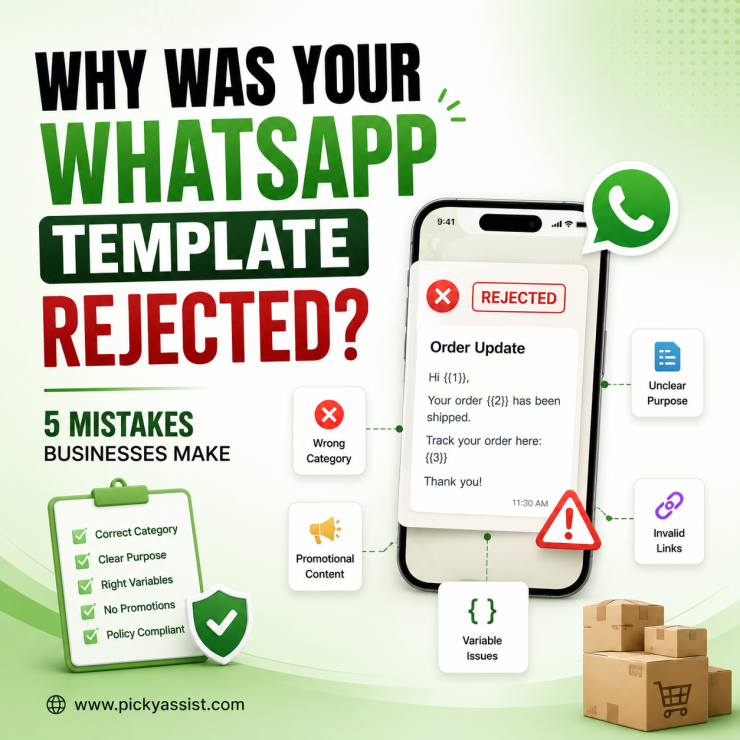
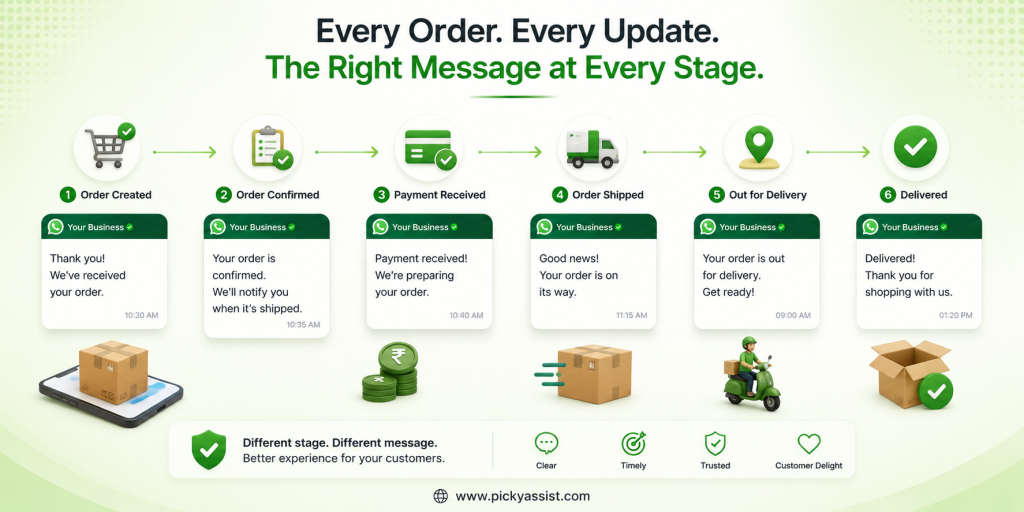
When businesses automate WhatsApp orders, a common mistake is treating every order message as the same template. An order confirmation, payment request, dispatch notification, and delivery update are different communication events. Each should have a clear purpose, relevant variables, and the right automation trigger.
What is a WhatsApp Order Template?
A WhatsApp order template is a pre-formatted business message used to collect order information or communicate transactional details such as order confirmations, payment updates, dispatch notifications, and delivery status.
For business-initiated messaging outside the 24-hour customer service window, an approved WhatsApp Business Platform template is generally required. Genuine transactional order notifications typically fall under the Utility category.
The purpose of the message determines how the template should be designed and categorized.
WhatsApp Order Template Examples
Customer Order Intake
For customers placing orders through WhatsApp, use a structured format that captures the information your team needs.
Hi! I’d like to place an order.
Name: {{1}}
Product: {{2}}
Quantity: {{3}}
Delivery address: {{4}}
Preferred payment method: {{5}}
Please confirm my order details.
This works well when customers arrive through WhatsApp links, QR codes, social media, or offline campaigns.
However, this is a customer-facing order format, not necessarily a proactive Meta message template. When the customer initiates the conversation, your business can respond within the applicable customer service window.
Order Confirmation
After creating the order, send a concise confirmation.
Hi {{1}}, your order has been confirmed.
Order ID: {{2}}
Total: {{3}}
Estimated delivery: {{4}}
We’ll notify you when your order is dispatched.
Keep this message transactional. Adding unrelated promotional content can create template categorization or approval issues.
Payment Pending
For an order awaiting payment:
Hi {{1}}, your order {{2}} is ready for payment.
Amount due: {{3}}
Payment deadline: {{4}}
Please complete your payment to proceed with the order.
Businesses using supported WhatsApp payment or Order Details capabilities can provide a richer transactional experience.
Order Dispatch
Once fulfillment confirms that an order has shipped:
Good news, {{1}}!
Your order {{2}} has been shipped.
Expected delivery: {{3}}
Track your order: {{4}}
Do not add cross-sells or unrelated promotions to a transactional shipping notification.
Out for Delivery
Keep the final delivery update short:
Hi {{1}}, your order {{2}} is out for delivery today.
Expected delivery: {{3}}
Track your order: {{4}}
For businesses handling large order volumes, these updates can reduce repetitive “Where is my order?” conversations.
Order intake vs order notification
| Use case | Purpose |
|---|---|
| Use case | Purpose |
| Order intake | Capture customer requirements |
| Order confirmation | Confirm the transaction |
| Payment pending | Request payment for an existing order |
| Dispatch | Confirm shipment |
| Out for delivery | Set delivery expectations |
| Delivery completed | Confirm completion |
A common implementation mistake is creating one template such as order_update and dynamically changing its content for every order stage.
Using separate templates for separate events makes automation easier to troubleshoot and gives each message a clear purpose.
What makes a good WhatsApp Order Template?
A strong order template should answer three questions:
- What happened?
- Which order does it concern?
- What does the customer need to know or do next?
For example:
Your order #PA10482 has been dispatched.
Expected delivery: 18 August.
Track shipment: {{1}}
Use variables for information that changes between customers or orders, such as:
- Customer name
- Order ID
- Product or quantity
- Order value
- Payment amount
- Delivery date
- Tracking URL
Only use variables that your automation can reliably populate.
The 24-hour rule
Timing matters as much as message content. When a customer messages your business, a 24-hour customer service window opens. During that period, businesses can generally respond with appropriate free-form messages.
For example:
Customer: “Where is my order?”
Business: “Order #4812 is currently with the delivery partner.”
If the business wants to proactively send a shipping update several days later, it may need to use an approved template.
A practical order workflow is:
Order created → Confirmation → Payment → Dispatch → Out for delivery → Delivered
Each event should trigger the appropriate message automatically.
Keep Utility Templates for transactions
A genuine order update is transactional:
Your order #5821 has been dispatched and is expected tomorrow.
A promotional message is different:
Your order #5821 has shipped! Buy another product today and get 20% off.
Adding promotional content does not make a promotional message Utility simply because it also contains order information. Keep order templates focused on the existing transaction and use appropriately categorized marketing messages for promotions.
WhatsApp Order Template Checklist
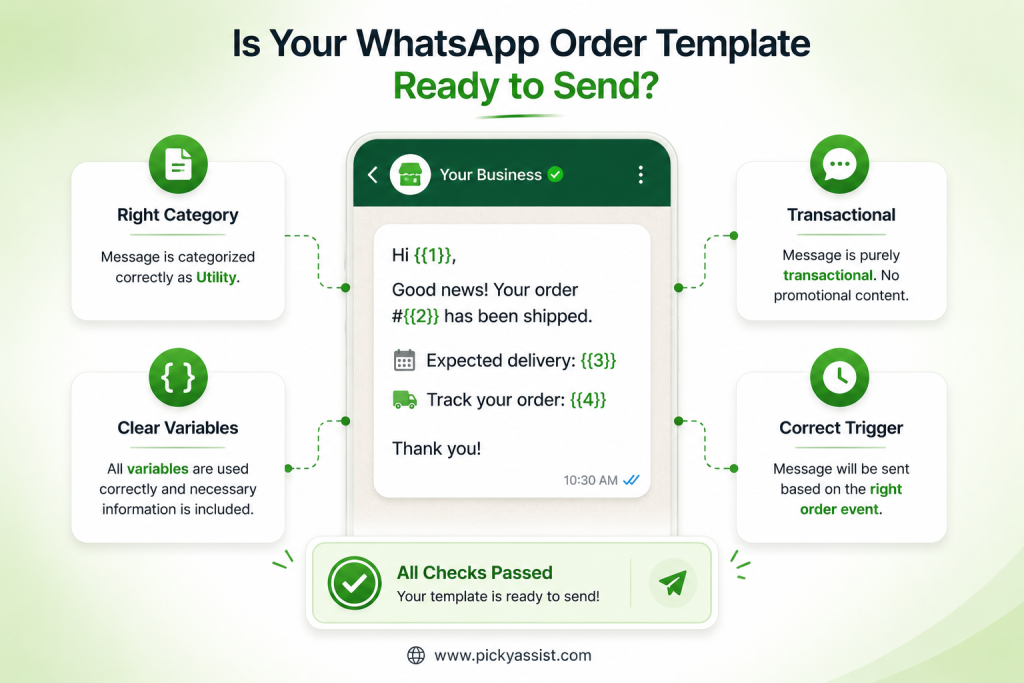
Before submitting or activating an order template, check:
- The message describes a genuine order event.
- The category matches the message’s actual purpose.
- Every variable is necessary.
- Variable examples are realistic.
- Promotional language has been removed.
- The order ID is clearly identifiable.
- The customer’s required action is clear.
- URLs point to the correct destination.
- Missing variables have been tested.
- The automation triggers at the correct order status.
Test edge cases too. Cancelled orders, failed payments, changed addresses, duplicate events, and missing delivery dates can all create poor customer messages if your automation is not prepared for them.
Build Templates Around Real Order Events
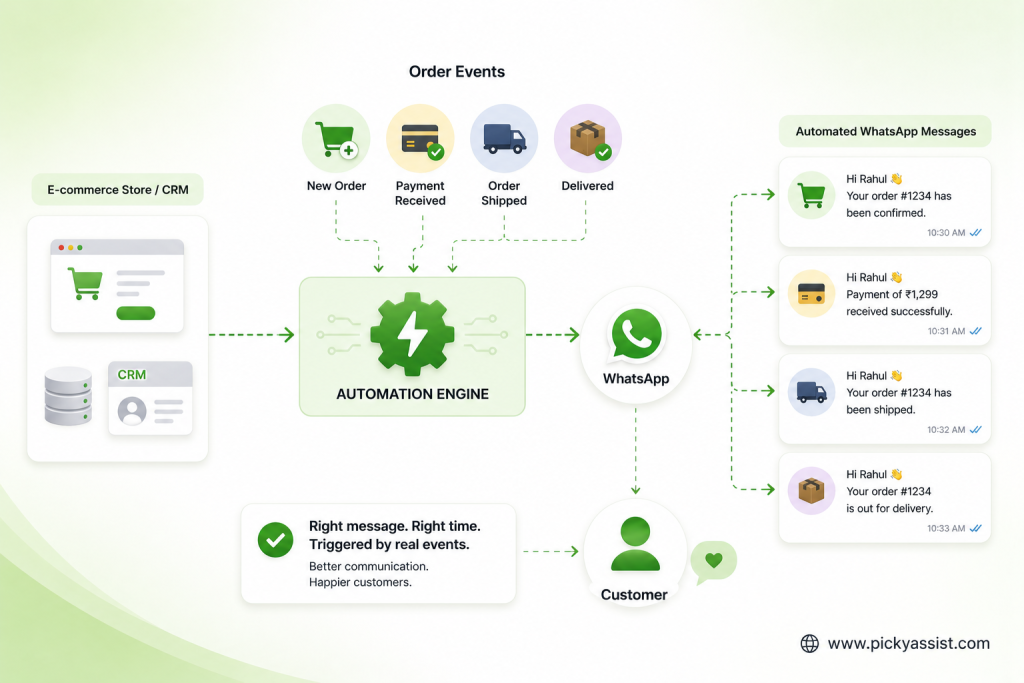
For businesses processing dozens or hundreds of orders, the template is only one part of the workflow. A reliable structure is:
Order event → Store/CRM data → Automation rule → Approved template → WhatsApp
For example:
Order created → confirmation
Payment received → payment confirmation
Order shipped → dispatch notification
Out for delivery → delivery notification
Trigger messages from verified order events, not arbitrary timers.
Sending “Your order has shipped” 24 hours after purchase is risky if the warehouse has not actually shipped it.
FAQs on WhatsApp Order Templates
A WhatsApp order template is a predefined message used for order confirmations, payment updates, shipping notifications, or delivery updates. Business-initiated messages outside the customer service window generally require an approved template.
Create the template through your WhatsApp Business Platform or provider interface. Select the appropriate category, add the message and variables, submit it for approval, and use it after approval.
A genuine order confirmation is generally a Utility message because it relates to an existing transaction. Promotional content can change the nature of the message.
Yes. An approved template can be used for business-initiated communication after the 24-hour customer service window, subject to WhatsApp’s applicable requirements.
Avoid adding promotional offers to transactional order confirmations. Keep the order update focused on the existing transaction and use an appropriate marketing message for promotions.
Common variables include the customer’s name, order ID, product , quantity, amount, delivery date, payment status, and tracking link. Only use variables your automation can reliably populate.
Common issues include incorrect categorization, promotional language, unnecessary variables, policy violations, or content that does not match the stated purpose of the template.

Add comment