
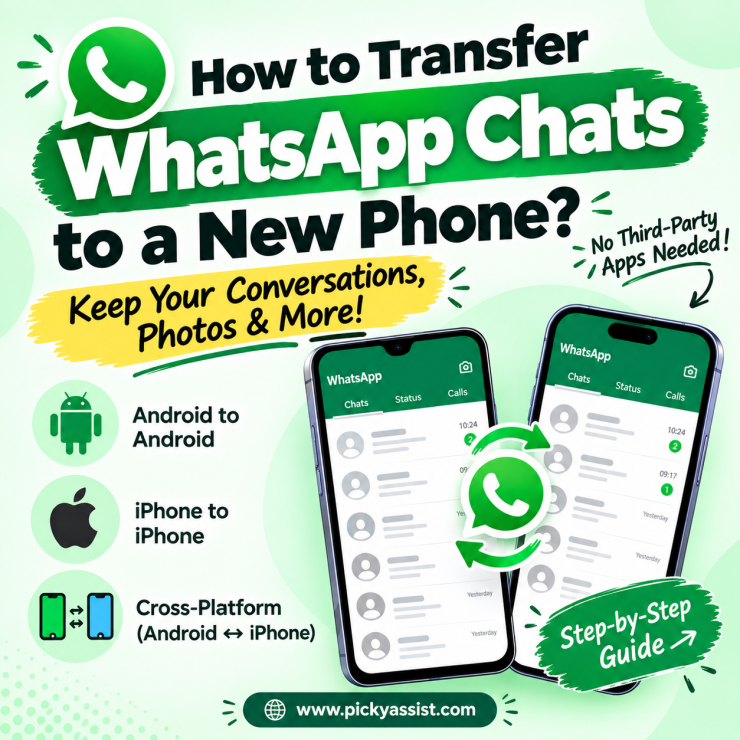
Getting a new phone doesn’t mean losing years of WhatsApp conversations. Whether you’re moving from Android to Android, iPhone to iPhone, or switching between operating systems, your chats can be transferred using WhatsApp’s built-in backup and restore tools. No third-party apps required for most cases. Let’s see how to transfer WhatsApp chats to a new phone, when you need that.
Same-OS Transfer (Easiest Method)
If your new phone runs the same operating system as your old one, transfer is straightforward.
Android to Android:
- On your old phone, open WhatsApp > Settings > Chats > Chat Backup, and back up to Google Drive.
- Install WhatsApp on the new phone and verify your number.
- When prompted, tap “Restore” to pull your Google Drive backup.
iPhone to iPhone:
- On your old iPhone, go to Settings > Chats > Chat Backup, and back up to iCloud.
- On the new iPhone, install WhatsApp, verify your number, and tap “Restore Chat History” when prompted.
Both methods restore messages, photos, videos, and voice notes, provided the backup is finished before you sign out of the old device.
Cross-Platform Transfer (Android ↔ iPhone)
Moving between operating systems used to mean losing your history. That’s no longer true. WhatsApp now offers an official in-app transfer tool.
Android to iPhone:
- On the new iPhone, during WhatsApp setup, tap “Transfer Your Chat History from Android.”
- Follow the on-screen QR code prompt to connect both phones on the same Wi-Fi network.
- Keep both devices close together until the transfer completes — this can take 10 to 30 minutes depending on chat volume.
iPhone to Android:
- On your old iPhone, go to Settings > Chats > Chat Backup, and use “Move to Android” (or Google’s “Switch to Android” app if that option isn’t visible).
- On the new Android phone, install WhatsApp, verify your number, and select “Transfer” when prompted.
- Both devices need to stay connected via cable or Wi-Fi Direct until it finishes.
Unlike Google Drive or iCloud restores, cross-platform transfer only works during initial WhatsApp setup on the new phone, not after you’ve already started using the app.
Same-OS vs Cross-Platform: Quick Comparison
| Method | Works For | Requires Same Wi-Fi | |
|---|---|---|---|
| Method | Works For | Requires Same Wi-Fi | Backup Needed First |
| Google Drive restore | Android to Android | No | Yes |
| iCloud restore | iPhone to iPhone | No | Yes |
| Official transfer tool | Android to iPhone / iPhone to Android | Yes | No |
| Manual media export | Any device (partial) | No | No |
If you’re unsure which route applies, checking both devices’ OS before you start saves time — cross-platform transfers fail if you attempt them after WhatsApp is already set up on the new phone.
A Note for Business Numbers
These steps apply to personal WhatsApp accounts. If you’re running a business number through the WhatsApp Business API. Say, for customer support or sales; chat history typically lives on your provider’s platform rather than the device itself. Platforms like Picky Assist store conversations in a central CRM, so switching phones or agents doesn’t risk losing customer chat history the way a personal transfer does. Even the standalone WhatsApp Business app follows the same backup-and-restore process described above, since it uses the same underlying chat storage as personal WhatsApp.
What Happens If WhatsApp Data Transfer Fails?
Interrupted transfers usually fall into one of three categories: a weak Wi-Fi connection during cross-platform transfer, an outdated app version on either device, or insufficient storage on the new phone. Updating both WhatsApp apps to the latest version before starting, and clearing at least 2-3 GB of free space on the new phone, resolves most failed attempts. If a Google Drive or iCloud restore silently fails, double-check that you’re signed into the correct account, a common cause of “missing” chats after setup.
A Few Precautions Before You Start
- Confirm your last backup timestamp in WhatsApp Settings before wiping the old phone.
- Keep both phones charged above 50% during cross-platform transfers. If either device powers off mid-transfer, you will need to restart the process from scratch.
- If you use WhatsApp for business conversations alongside personal chats, consider separating them. Tools like Picky Assist exist specifically so business chat history isn’t tied to a single employee’s device, making business chats secure.
- Don’t uninstall WhatsApp from the old phone until you’ve confirmed messages appear correctly on the new one.
FAQs on WhatsApp Chat Transfer
Back up your chats on the old phone (Google Drive for Android, iCloud for iPhone), then restore that backup when you set up WhatsApp on the new device.
No. WhatsApp backups are tied to your phone number, so chat history only transfers to the same number on a new device.
Not if you back up first. Without a recent backup, unsaved chats since your last backup will be lost.
Restore your most recent backup during the WhatsApp setup process on your new phone. This is the only point where restoration is offered.
Your backup may be outdated, or you may have skipped the restore prompt during setup. Check your last backup date in Settings > Chats > Chat Backup.
Install WhatsApp, verify your number, and tap “Restore”. Make sure you’re signed into the same Google account used for the backup.



Add comment