
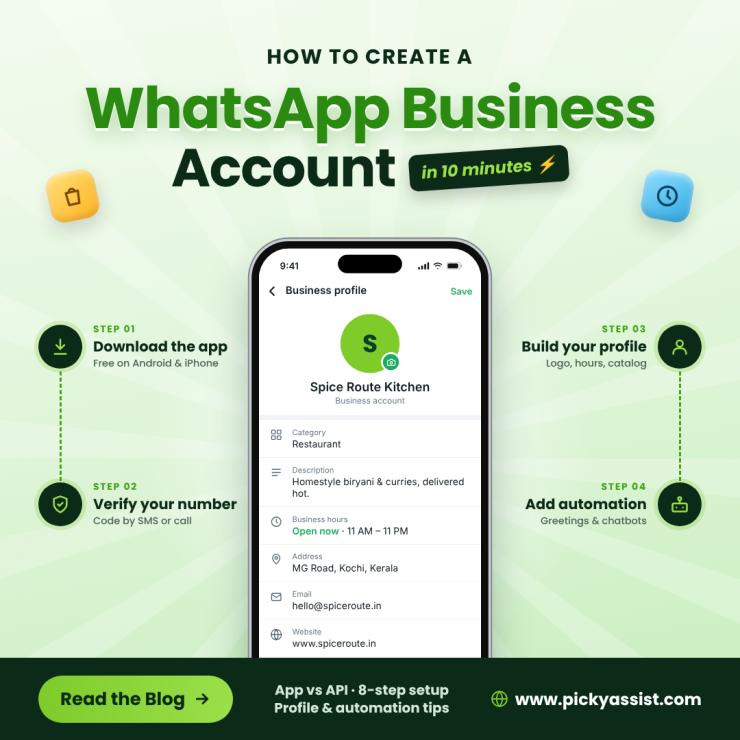
You can create a WhatsApp Business account in about ten minutes by downloading the free WhatsApp Business app, verifying a phone number, and filling in your business profile. If you need automation, multiple agents, or bulk messaging, you instead apply for the WhatsApp Business API through Meta official providers like Picky Assist, Aisensy, or Wati. In this blog you will see how to create a WhatsApp business account in a step by step processes.
What is a WhatsApp Business Account?
A WhatsApp Business account is a separate profile built for businesses, not individuals. It looks like a regular WhatsApp chat to your customer, but it gives you a verified-style business identity and tools for managing conversations at scale.
There are two kinds:
- WhatsApp Business Platform (API): A programmatic interface that connects WhatsApp to a CRM system, chatbot, or shared inbox. It has no app interface of its own; you use it through a WhatsApp Business API provider.
- WhatsApp Business App: Small business teams simply rely on WhatsApp Business App that manage chats manually from a phone (with linked devices).
WhatsApp Business App vs WhatsApp Business API
| Factor | WhatsApp Business App | WhatsApp Business API |
|---|---|---|
| Setup | Download and Register | Apply via Meta or a Business Solution Provider |
| Cost to start | Free | Provider fees plus Meta’s per-message charges |
| Team Access | One phone plus linked devices | Unlimited agents through a shared inbox |
| Automation | Greeting, away message, quick replies | Chatbots, workflows, AI agents, integrations |
| Bulk Messaging | Limited broadcast lists | Template-based campaigns at scale |
| Best for | Solo sellers, local shops, early-stage businesses | Growing teams, support desks, high-volume sales |
Meta revises message pricing from time to time, so check its current rate card before budgeting for the API.
How Businesses Can Set up a WhatsApp Business Account?
A business sets up a WhatsApp Business account by choosing the right account type, preparing its business details, registering a verified phone number, completing the business profile, and then adding team access, opt-in rules, and automation. Small teams can start with the free WhatsApp Business app. Teams that need shared inboxes, chatbots, and campaigns use the WhatsApp Business Platform (API) through an official provider.
1. Decide What You Want WhatsApp to Do
Before opening any app, write down the job WhatsApp will do for you. The setup choices follow from that.
| Business goal | What you’ll need |
| Answer customer questions | Profile, quick replies, away message |
| Take orders or bookings | Catalog or booking flow, labels, payment process |
| Run support with several agents | Shared inbox through the API |
| Send promotions and reminders | API with approved message templates and opt-ins |
| Qualify leads automatically | Chatbot plus CRM integration |
2. Choose the Right Account Type for Your Stage
| Business stage | Recommended setup | Why |
|---|---|---|
| Solo owner or one-location shop | WhatsApp Business app | Free, quick, no technical work |
| Small team of 2 to 5 handling chats | App with linked devices, or API through a provider | Depends on how much you want to automate |
| Growing team, high message volume | WhatsApp Business API | Shared inbox, automation, integrations |
| Multi-branch or regulated business | API with business verification | Central control and a clearer audit trail |
If you’re unsure, start on the app and plan the move to the API when replies start slowing you down. Some providers support coexistence, which lets a number work on both the app and the API. Availability depends on Meta’s current rules, so ask your provider before you assume it.
3. Gather Your Business Assets
Having these ready makes the setup smooth:
- A dedicated business number that can receive an SMS or voice call. Avoid using a personal number unless you intend to migrate it.
- Business name exactly as customers know it.
- Logo for the profile picture.
- Business category, description, address, working hours, email, and website.
- Product or service list with photos and prices, if you want a catalog.
- For the API: a Meta Business portfolio and legal business documents. Depending on what Meta asks for, these can include a registration certificate, a tax or GST certificate, or a utility bill.
4. Set Up the Account
1. WhatsApp Business App
- Download WhatsApp Business from Google Play or the App Store.
- Accept the terms and enter your business number.
- Enter the verification code sent by SMS or call.
- Add your business name and profile photo.
- Complete the business profile with category, description, hours, address, email, and website.
- Turn on a greeting message, away message, and quick replies.
- Add your catalog if you sell products or services.
2. WhatsApp Business Platform (API)
- Create a Meta Business portfolio and add your business details.
- Verify your business by submitting your legal documents.
- Choose an official Business Solution Provider. A provider such as Picky Assist, an official Meta Partner, handles the onboarding so you don’t have to work with Meta’s developer tools yourself.
- Create your WhatsApp Business Account through the provider’s embedded sign-up flow.
- Register and verify your phone number.
- Submit your display name for Meta’s review.
- Create message templates and wait for approval.
- Connect your inbox, chatbot, or CRM, and send a test message.
5. Build the Profile Customers Trust
Customers decide in seconds whether a business is real. Complete every field, keep the description to one clear line, and use your logo as the photo. Keep your hours accurate, and add your website so customers can verify you. A catalog with clear photos and prices reduces repetitive “how much is this?” questions.
6. Organise Your Team and Access
Account setup is also a team decision. Before you go live, settle these points:
- Who owns the account? One person should be responsible for the number and the Meta Business portfolio.
- Who replies, and when? Agree on working hours and a handoff routine.
- How are chats tagged? Use labels or CRM tags for new leads, pending payment, and order confirmed.
- Where are the records? The API with a CRM keeps conversation history linked to each customer instead of living on one phone.
7. Set Opt-In and Messaging Rules
WhatsApp expects businesses to message people who have agreed to hear from them. Collect consent at checkout, on forms, on your website, or when a customer messages you first. Send relevant messages only, and make it easy to opt out. On the API, a conversation you start outside the 24-hour reply window requires an approved template. Messages that customers block or report can put your number at risk of restrictions.
8. Add Automation Where It Saves Time
Once the account is live, automate the repetitive work.
- Greeting and away messages for instant acknowledgement.
- Quick replies for price, location, delivery, and hours.
- Chatbots for FAQs, lead capture, and order status.
- Follow-up reminders for abandoned enquiries, appointments, and payments.
- CRM sync so every chat becomes a trackable lead.
This is where platforms like Picky Assist help. You can build chatbots, run broadcasts, and manage conversations in a single CRM instead of stitching tools together.
How Different Businesses Use Their Setup?
| Business type | Typical WhatsApp use |
|---|---|
| Business Type | Typical WhatsApp Use |
| Retail and E-commerce | Catalog browsing, order updates, delivery notifications |
| Clinics and Salons | Appointment booking and reminders |
| Education | Enquiry handling, admissions follow-up, class updates |
| Real Estate | Lead qualification, property details, site visit scheduling |
| Restaurants and Food Services | Menus, orders, and order status |
| Service Businesses | Quotes, job updates, invoices, support |
Common Mistakes to Avoid
- Registering a number tied to your personal chats. You lose the clean separation you were trying to build.
- Messaging people without opt-in. Unrequested messages lead to blocks and can put your number at risk of restrictions.
- Skipping the business description. An empty profile looks untrustworthy.
- Outgrowing the app without noticing. If you are juggling several staff on one phone or manually replying to the same questions daily, it is time to look at the API.
Which Option Should You Choose?
Start with the app if you are a single-location or solo business testing WhatsApp as a channel. Move to the API when you need multiple agents, automated replies, campaign messaging, or CRM integration. Many businesses begin on the app and migrate within a few months, and platforms like Picky Assist let you add chatbots and automated follow-ups once you outgrow manual replies.
Conclusion
Creating a WhatsApp Business account is quick: verify a number, complete your profile, and set your automated messages. Pick the app for simplicity or the API for scale, and fill in your profile completely either way. If you are ready to automate conversations, onboard to the API with Picky Assist and start with a small, opted-in audience.
FAQs on WhatsApp Business Account
The Business App is free to download and use. The API is free to register, but you pay provider fees and Meta’s per-message charges.
Not at the same time on one phone. A number is tied to one app at a time, so use a separate number or migrate the existing one.
No, but you need a number that can receive a verification code. A dual-SIM phone or a landline with voice verification both work.
It adds a business profile, catalog, labels, quick replies, and automated greeting and away messages.
The app supports a primary phone plus linked devices. For larger teams, the API with a shared inbox is the better fit.
Meta decides on verification. Eligibility depends on Meta’s criteria for the business, so check its current requirements.
Broadcast lists work only for contacts who have saved your number, and they are limited. Large campaigns need the API with approved templates.
You can edit it in the profile, but API display names go through Meta’s review, so choose carefully at the start.
Add comment