
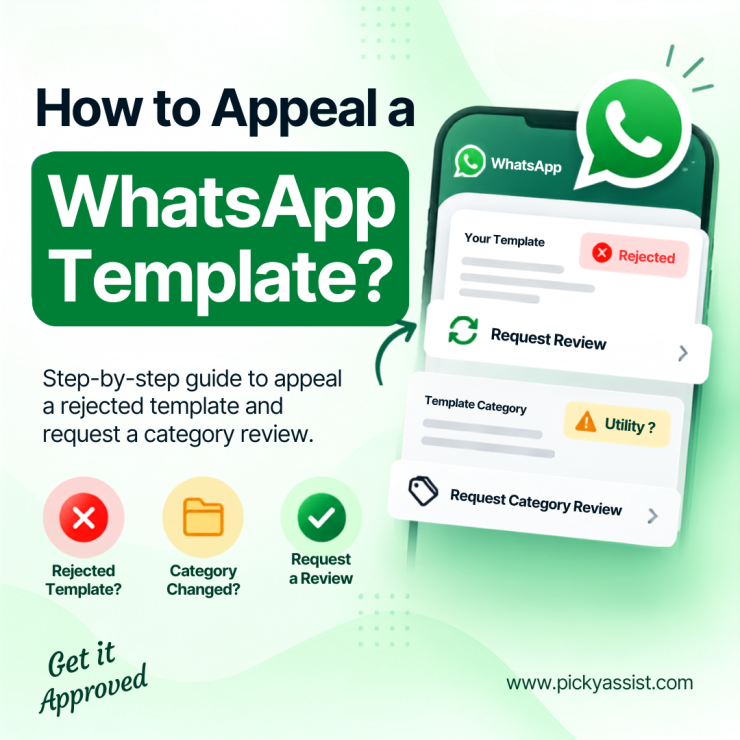
When a WhatsApp template is rejected or assigned a different category than you selected, you can request a review through Meta Business Suite. This guide explains how to appeal a rejected WhatsApp template and how to request a category review when Meta changes the assigned category.
Why Was Your WhatsApp Template Rejected or Recategorized?
A WhatsApp business message template may be rejected when Meta determines that its content does not meet the applicable messaging or template requirements. In other cases, a template may be approved but assigned to a different category, such as Marketing, Utility, or Authentication.
For businesses, reviewing the reason shown in WhatsApp Manager is the first step before submitting an appeal. A clear understanding of the policy issue helps you provide a short and factual explanation when appealing a WhatsApp template.
How to Appeal a Rejected Template?
If Meta rejects your WhatsApp message template for business, you can request a review through Meta Business Suite. Before submitting the review, check the policy reason for the rejection in WhatsApp Manager.
1. Open Business Support Home or Account Quality
Log in to your Meta Business Account and open Business Support Home or Account Quality. Select your WhatsApp Account and open WhatsApp Manager.
2. Open Manage Templates
Inside WhatsApp Manager:
- Go to Message Templates.
- Click Manage Templates.
- Find the rejected template.
- Review the policy issue or rejection reason shown for it.
3. Request a Review
Open the rejected template and select Request Review or See Details, depending on the option displayed in your account.
Enter a short, factual explanation of why the template complies with Meta’s guidelines. Keep the explanation directly related to the rejection reason, then submit the review request.
A strong appeal should explain the intended use of the message and clarify why the content follows the relevant requirements. This is especially important when reviewing a WhatsApp business message template against the policy reason shown in your account.
How Long Does It Take for a WhatsApp Template to Be Approved?
Review times can vary. Meta does not provide a universal approval time that applies to every review. You can check the status of your request in WhatsApp Manager.
If a review is still pending, check the template status and any available details in your Meta Business Account rather than repeatedly submitting the same request.
How to Appeal a Template Category Change?
Meta may assign a different category from the one you selected when creating a template. The available categories include Marketing, Utility, and Authentication.
If Meta recategorizes your WhatsApp business templates and you believe the assigned category is incorrect, you can request a category review through Meta Business Manager. Reviewing your WhatsApp business templates regularly can also help you identify category changes that need attention.
1. Open WhatsApp Manager
- Log in to Meta Business Suite.
- Select your Business Portfolio.
- On the left side, click WhatsApp Accounts.
- Choose your WhatsApp Account.
- Open WhatsApp Manager.
2. Navigate to Manage Templates
In WhatsApp Manager:
- Click Manage Templates.
- Review the templates listed in your account.
- Locate the template with the changed category.
3. Open the Category Review Section
Look for “Review category updates in Business Support Home.”
Click the link to open the category review area.
4. Select Template Category Updates
In Business Support Home:
- Select Template Category Updates on the left side.
- Review the templates available for category review.
- Select the relevant template.
- Submit your request for category review.
You can request a category review only within 60 days of template creation, according to the process described above.
What Should You Include in an Appeal?
Whether you are appealing a rejection or a category change, keep your explanation concise and factual.
Include:
- The purpose of the message.
- How the message is used with customers.
- Why the message follows the relevant Meta requirements.
- Why the assigned category may not accurately describe the message, if you are appealing a category change.
Do not use the appeal to add promotional claims, unrelated business information, or lengthy explanations that do not address the specific issue.
Rejected Template vs. Category Review
The two review processes address different issues. Before submitting a review for a WhatsApp business message template, confirm whether the problem is rejection or category assignment.
| Issue | What to request |
|---|---|
| Template rejected | Request a review of the rejection |
| Template assigned a different category | Request a category review |
| Category changed and you disagree | Submit the category review within the permitted period |
Understanding which issue you are appealing helps you choose the correct review option in Meta Business Suite.
FAQs on Appealing a WhatsApp Template
Yes. You can request a review from WhatsApp Manager when a template has been rejected. Open the relevant template, review the rejection details, and use the available review option to submit your explanation.
You can request a category review only within 60 days of template creation.
Category reviews can be requested through Business Support Home by opening Template Category Updates and selecting the relevant template.
The main WhatsApp business templates categories covered here are Marketing, Utility, and Authentication. Meta may assign a different category from the one selected during creation.
For a WhatsApp message template for business, keep the explanation focused on the specific policy or category concern. Explain the purpose of the message, address the specific rejection or category issue, and state why you believe the content complies with Meta’s applicable requirements.

Add comment