
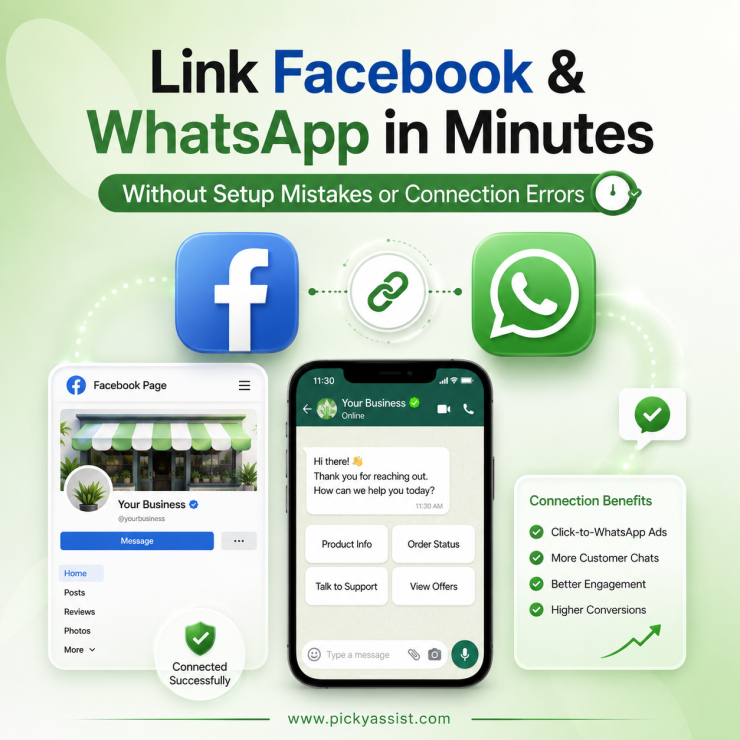
If you are here to know how you could Connect Facebook to WhatsApp, clearly understand that it totally depends on what you are actually trying to do. Personal users link the two through Meta’s Accounts Center for shared profile info. Businesses link a Facebook Page to a WhatsApp Business number through Page Settings, and businesses running the WhatsApp Business API link it through Meta Business Manager. Each path takes under 10 minutes once you know which one applies.
While some are trying to sync their personal accounts, a business owner is trying to get click-to-WhatsApp ads or a chat button working on their Facebook Page. The setup steps aren’t interchangeable, so the first thing to sort out is which one you actually need!
Which “linking” do you actually need?
| Goal | Where you do it | Who it’s for |
|---|---|---|
| Share basic profile info across Meta apps | Accounts Center (in Facebook or WhatsApp settings) | Personal users |
| Add a WhatsApp chat button / number to a Facebook Page | Facebook Page Settings → Linked accounts | Small businesses, single-location shops |
| Run ads, automation, or the WhatsApp Business API through a verified business number | Meta Business Manager | Growing businesses, agencies, anyone using a CRM or automation platform |
If you’re just trying to make your name and profile photo consistent across apps, Accounts Center is enough and takes two minutes. If you’re setting up a business number that customers will message, use one of the other two. If you plan to run automation, broadcasts, or a chatbot on that number eventually, go straight to Business Manager rather than the basic page link, since you will end up migrating there anyway.
Linking a Facebook Page to WhatsApp (the common route)
This is what most small business owners actually mean when they ask this question.
- Go to your Facebook Page and open Settings.
- Under Settings & privacy, click Linked accounts.
- Select WhatsApp.
- Enter your WhatsApp Business number, including the country code.
- Facebook sends a one-time code to that WhatsApp number, enter it to confirm.
- Once confirmed, you can add a “Message on WhatsApp” button to your Page and use the number in ads.
Two Common Reasons WhatsApp Won’t Connect to Your Facebook Page
The number must already be on WhatsApp Business (not a personal WhatsApp account), and it can only be linked to one Facebook Page at a time. If you’ve previously connected that number elsewhere, you’ll need to unlink it first. Trying to add it to a second Page without doing that is the most common cause of a stuck “connection pending” status.
Linking through Meta Business Manager (for API and automation use)
If you’re planning to run automated replies, broadcast campaigns, or connect a CRM to WhatsApp, this is the path that actually supports it, the basic Page link doesn’t.
- Create or open your account in Meta Business Manager.
- Complete business verification (legal business name, address, and a verification document, this step alone can take anywhere from a few hours to a few days depending on document review).
- Under Business Settings → Accounts, add a WhatsApp Business Account.
- Register a dedicated phone number — this number can’t already be active on a regular WhatsApp or WhatsApp Business app; it needs to be freed up first, since Meta won’t register a number that’s mid-session on another app.
- Assign the account to your Facebook Business Portfolio so your team or automation platform (if you’re using one) has the right permissions to send messages on your behalf.
The most common failure point here isn’t the linking step itself. It’s business verification getting rejected because the business name on the document doesn’t exactly match what’s entered in the Business Manager. Double-check that before submitting; resubmissions add days to the timeline.
A Quick Pre-flight Checklist
Before you start either business path, confirm:
- The number isn’t currently active in the regular WhatsApp or WhatsApp Business consumer app
- You have admin access to the Facebook Page or Business Manager account
- Your business name matches exactly across your verification documents and Meta Business settings
- You’re not trying to link a number that’s already connected to a different Page or Business Manager account
FAQs on Connecting WhatsApp Business with Facebook Account
Yes, for basic profile syncing through the Accounts Center. But adding a WhatsApp button or number to a Facebook Page requires WhatsApp Business, not a personal WhatsApp account.
Usually because it’s still active on another device or app session. Log the number out of WhatsApp elsewhere, or use a number that isn’t currently registered anywhere else.
No. A WhatsApp Business number connects to one Facebook Page at a time. To move it, unlink it from the current Page first.
No, the basic Page Settings → Linked accounts path handles that. Business Manager is only necessary if you’re using the WhatsApp Business API, running automation, or need multi-user access.
It varies, often a few hours, sometimes several days if documents need review or don’t exactly match your submitted business details.

Add comment