
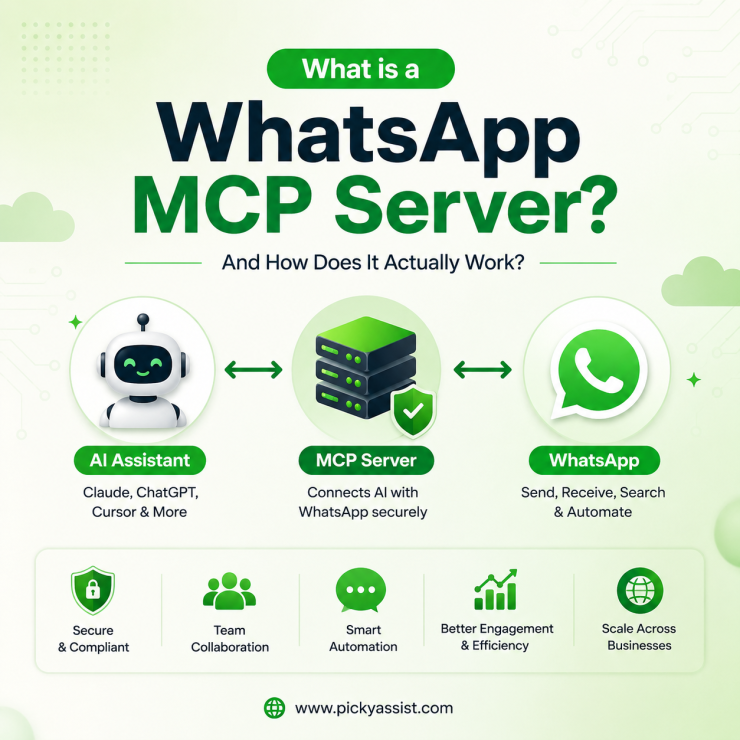
A client asked us recently if we could “just plug Claude into WhatsApp” so their support team could ask an AI assistant to pull up a customer’s chat history without opening the app. That request sums up a WhatsApp MCP server in one sentence. The real answer, however, is a little more nuanced because “WhatsApp MCP server” now refers to several different approaches, and confusing them is where many businesses run into problems.
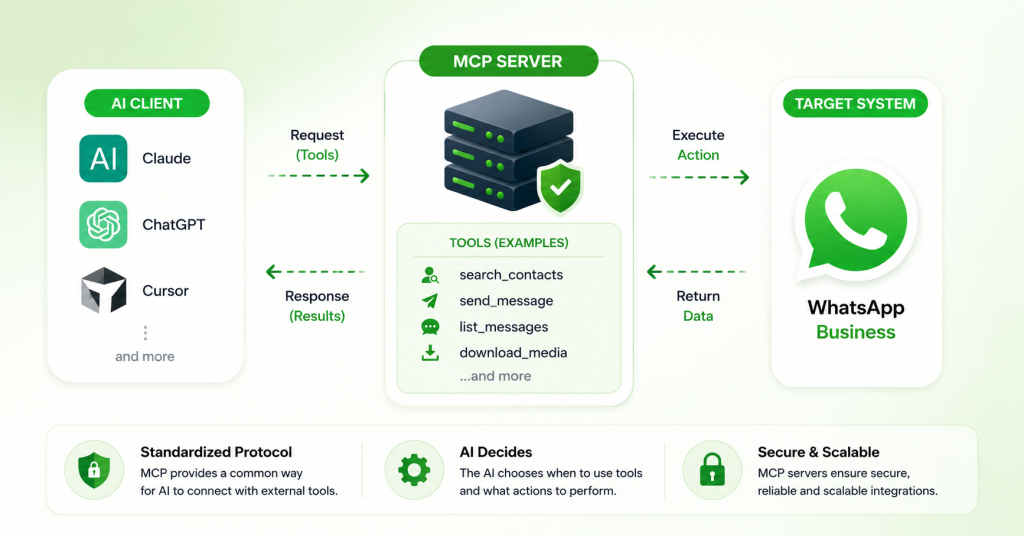
A WhatsApp MCP server exposes WhatsApp as a set of standardized tools that an AI assistant can call through the Model Context Protocol (MCP). Instead of building a custom integration for every AI application, it provides actions such as searching contacts, retrieving conversations, or sending messages through a common interface. The AI decides when to use these tools, while the MCP server simply executes the requested action.
In practice, today’s WhatsApp MCP servers generally fall into three categories: unofficial servers built on personal WhatsApp accounts, third-party servers that wrap the official WhatsApp Business Platform (either Meta’s Cloud API or a Business Solution Provider’s API), and a growing number of MCP servers developed and supported by Business Solution Providers themselves.
What “MCP” Actually Means?
Model Context Protocol (MCP) is an open standard introduced by Anthropic that allows AI assistants to interact with external tools through a common protocol. An MCP server exposes actions such as searching chats or sending messages, while an MCP client; such as Claude Desktop, Cursor, or another compatible AI application, connects to that server and lets the AI invoke those actions when needed.
A WhatsApp MCP server is simply an MCP server whose tools interact with WhatsApp instead of databases or project management software. The MCP server isn’t the AI; it acts as the bridge between the AI assistant and WhatsApp. What ultimately determines its capabilities, security, and reliability is the WhatsApp infrastructure behind it, whether that’s an unofficial personal account, the official WhatsApp Business Platform, or a Business Solution Provider’s implementation.
The Three Types of WhatsApp MCP Server
1. Personal-account MCP servers (unofficial, WhatsApp-based)
Most of the WhatsApp MCP servers you’ll find on GitHub follow the same two-part pattern, popularized by early open-source projects in this space:
An MCP server layer sits on top of that bridge and exposes structured tools search_contacts, list_messages, send_message, download_media, and similar, that an AI client can call.
Message history is typically stored locally in a SQLite database on your own machine, and data only leaves that machine when the AI model explicitly calls one of the exposed tools, not continuously. Because these tools ride on WhatsApp’s client login protocol rather than a data export API, the initial sync usually only pulls in recent history, often a few months back, with the exact window set by your phone, not the MCP server.
This category is not sanctioned by Meta and is built entirely by independent developers. It’s a reasonable way for a developer to prototype “AI reads my own chats,” and a risky way to run a business.
2. Third-party MCP servers wrapping a BSP’s API
A second category has grown up alongside official WhatsApp Business Solution Providers (BSPs): independent developers building MCP servers that call a specific BSP’s existing API; search contacts, send template messages, manage campaigns using your API key for that provider.
3. Official, first-party MCP servers from BSPs
The newest category, and the one worth watching: BSPs shipping their own MCP server as a first-party product.
Comparing the Three in a Snapshot!
| Personal WhatsApp MCP | Third-party MCP on a BSP’s API | Official, first-party BSP MCP | |
| What it connects to | Your personal WhatsApp account via WhatsApp protocol | A BSP’s existing Business API, via an independently built wrapper | A BSP’s Business API, via a server the BSP itself built and maintains |
| Meta approval | Not sanctioned; runs on reverse-engineered client behavior | Compliant underneath (real Business API), but the MCP layer itself is unofficial | Fully compliant and officially supported |
| Number ban risk | Real, automating a personal account can trigger a ban | Low, inherits the BSP’s approved sending infrastructure | Low — same reason |
| Support if it breaks | None — community-maintained, breaks silently with WhatsApp changes | Whoever maintains the wrapper, which varies widely | The BSP’s own support |
| Team use | Single device/session, effectively single-user | Depends on the BSP account behind it | Built for team and account-level use |
| Best for | A developer wanting an AI assistant to read/search/send from their own chats | Teams already on a specific BSP who want AI access before the BSP ships its own | Businesses that want AI-driven control of their WhatsApp Business messaging with vendor accountability |
If you’re a developer who wants Claude to draft a reply based on a real conversation thread, a personal MCP server is a reasonable, if unofficial; way to prototype that. If you’re a business running customer support, sales follow-up, or broadcast messaging, an official or API-backed option is the only one that doesn’t put your number at risk. Treating a personal-account MCP tool as a business automation layer is the most common and most expensive mix-up in this space.
Common Mistakes When Choosing One
- Assuming “MCP server” always means the same thing. As above; personal, third-party wrapper, and official first-party servers carry very different risk and support profiles. Ask which one you’re looking at before you connect anything.
- Running a personal-account MCP server on a number your business depends on. Test with a spare SIM or secondary account, not your primary customer-facing number.
- Expecting full chat history from a personal-account server on first sync. Plan for a limited initial sync window, not a complete archive.
- Skipping session persistence on personal-account setups. If the bridge process isn’t kept running (or the linked phone goes offline too long), you’ll need to re-scan the QR code and start over.
How to Set Up a WhatsApp MCP Server to Connect AI Agents?
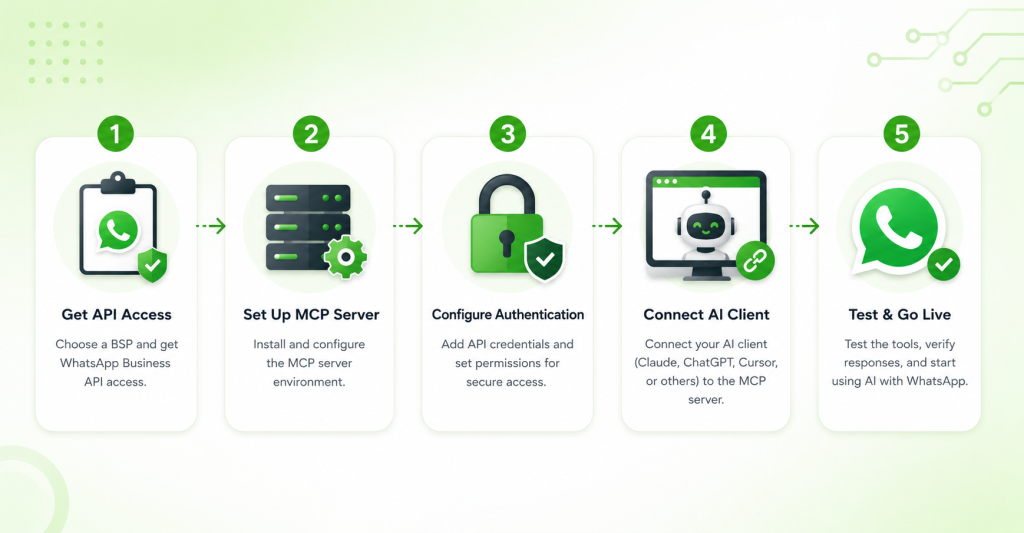
1. Get WhatsApp API Access
Secure a working WhatsApp connection first, either directly through Meta’s WhatsApp Business Cloud API, or via a Business Solution Provider (BSP) that already holds API access. An MCP server has nothing to expose without this in place.
2. Set Up the MCP Server
Either install an existing MCP server that wraps WhatsApp functionality (open-source and vendor-published options exist), or build your own by wrapping your WhatsApp API, sending messages, checking conversation status, managing templates as individually defined MCP tools.
3. Configure Authentication
Connect the MCP server to your WhatsApp account using an API token or OAuth-style credential. Decide which actions to actually expose to an AI agent, rather than enabling everything by default.
4. Connect Your AI Client
Add the MCP server’s URL or connection details into your AI client’s settings (Claude, ChatGPT, Cursor, or similar). Most modern clients support this as a simple configuration step, no custom code needed.
5. Test Before Going Live
Start with a low-risk action, like sending a message to your own number, before letting the agent act on real customer conversations. Keep logging or an audit trail active so you can review what the agent actually triggers.
FAQs on WhatsApp MCP Servers
A WhatsApp MCP server exposes WhatsApp actions, searching contacts, reading messages, sending messages, as tools an AI model can call through the Model Context Protocol. It comes in three forms: unofficial personal-account servers, third-party servers wrapping a Business API provider’s API, and official first-party servers published by the provider itself.
It depends which one. Personal-account MCP servers built on WhatsApp are community projects, not sanctioned by Meta. Servers built on a WhatsApp Business Solution Provider’s API, especially first-party ones the provider publishes itself. Wati’s Astra MCP server, run on Meta-approved Business API infrastructure and inherit that compliance.
It depends on the type. Personal-account servers carry real risk, since they automate a number outside WhatsApp’s intended client behavior. Servers built on an approved Business API account carry that risk. Instead of avoiding it, approval and quality policies apply the same way they would to any Business API sending.
A personal WhatsApp MCP server connects an individual’s WhatsApp account to an AI assistant for personal use. WhatsApp Business Platform automation like chatbots, broadcasters, CRM and inboxes runs through Meta’s official business channel. It is built for teams and compliant, scaled messaging. Some providers now bridge the two by shipping an MCP server on top of their Business API platform.
Not usually, for personal-account servers, most only sync a limited recent window on first connection. Often just a few months, because that’s what WhatsApp’s client login protocol provides rather than a full export. Business API-backed servers instead expose whatever conversation history the underlying platform stores for your account.
For a personal-account server, yes installing a bridge process and configuring environment variables is a developer-level task. For businesses, Official first-party servers are designed for a non-developer setup flow. Add the server URL as a connector, sign in, and authorize.
Picky Assist’s actions, like sending a WhatsApp message, can be triggered from an MCP-compatible AI client through Zapier’s MCP server. It exposes connected Zapier apps as callable actions. Picky Assist does not currently publish its own first-party MCP server.

Add comment